Plantronics Bluetooth Headset Manual: A Comprehensive Guide
This manual offers solutions for common Plantronics headset issues, including pairing, audio, and connection problems, ensuring optimal performance and a seamless user experience.
Plantronics, now Poly, headsets are renowned for their reliability in daily communication, yet occasional hiccups like audio drops or pairing failures can occur. These wireless devices offer freedom and convenience, becoming essential tools for professionals and everyday users alike. This guide addresses common issues, providing straightforward solutions to restore functionality.
Understanding your headset’s capabilities and potential problems is key to maximizing its lifespan and ensuring clear, consistent audio. From initial setup to troubleshooting connectivity, this manual aims to empower you with the knowledge to resolve issues independently, minimizing downtime and frustration.
Understanding Common Issues
Plantronics Bluetooth headsets can experience a range of problems, frequently involving Bluetooth pairing difficulties, audio disruptions (like no sound or distortion), and microphone malfunctions. Users often report issues with headsets failing to connect, exhibiting flashing lights indicating errors, or experiencing reduced battery life. These problems aren’t always indicative of a serious defect; often, simple troubleshooting steps can resolve them.
Connectivity issues can stem from device compatibility or range limitations. Audio problems might relate to volume settings or software glitches. This section will detail these common occurrences, preparing you to diagnose and address them effectively.
Bluetooth Pairing Problems
Bluetooth pairing issues with Plantronics headsets are frequently encountered, often requiring users to “forget” or “unpair” the device from their smartphone or computer’s Bluetooth settings. Subsequently, initiating the pairing process anew can resolve the connection problem. These difficulties can arise from various sources, including interference from other Bluetooth devices or outdated software.
Ensuring your headset is in pairing mode is crucial. If problems persist, checking device compatibility and confirming the headset isn’t already connected to another device are essential troubleshooting steps.
Initial Pairing Process
To initially pair your Plantronics Bluetooth headset, ensure it’s in pairing mode – typically activated by holding the power button for an extended period until a specific light indicator flashes. Next, navigate to the Bluetooth settings on your smartphone or PC and scan for available devices. Your Plantronics headset should appear in the list.
Select the headset to initiate the connection. You may be prompted for a passcode; if so, enter “0000” or consult your headset’s specific documentation. Successful pairing is usually confirmed by a solid light or an audio prompt.
Forgetting and Re-Pairing
When Bluetooth pairing issues arise, “forgetting” and re-pairing the headset can often resolve the problem. On your device, access the Bluetooth settings, locate your Plantronics headset within the paired devices list, and select the “forget” or “unpair” option. This removes the headset from your device’s memory.
Subsequently, initiate the pairing process anew, as described in the initial pairing instructions. This fresh connection can eliminate corrupted pairing data and restore a stable Bluetooth link between your headset and device, often fixing intermittent connectivity problems.
Audio Issues: No Sound or Distorted Sound
Experiencing audio problems with your Plantronics headset? Begin by meticulously checking the volume levels on both the headset itself and the connected device – ensure neither is muted or set too low. If sound remains absent or distorted, troubleshoot potential audio drops by verifying a stable Bluetooth connection.
Interference from other wireless devices can sometimes cause these issues. Try moving to a different location or disconnecting other Bluetooth connections to see if the audio quality improves. A restart of both headset and device is also recommended.
Checking Volume Levels
To resolve audio issues, start with a thorough volume check. First, verify the volume control on your Plantronics headset isn’t muted or set to minimum. Next, examine the volume settings on the paired device – whether it’s a smartphone, computer, or tablet. Ensure the application you’re using (e.g., music player, call app) also has its volume appropriately adjusted.
Sometimes, separate volume controls can conflict. Gradually increase volume on each level to pinpoint the source of the problem. A simple oversight here is often the root cause!
Troubleshooting Audio Drops
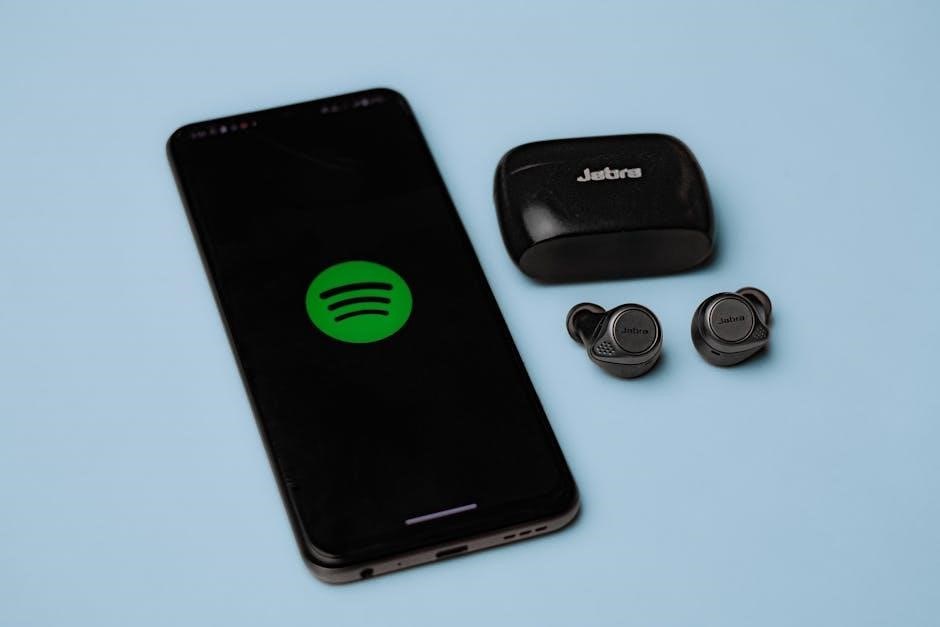
Intermittent audio disruptions can be frustrating. Begin by confirming there are no physical obstructions between your headset and the paired device. Bluetooth signals are susceptible to interference from other wireless devices, microwaves, or even walls. Try moving closer to your device to rule out range issues.
Also, check for software conflicts or outdated drivers on your computer or phone. Restarting both devices can often resolve temporary glitches causing these audio drops. Ensure no other applications are heavily utilizing Bluetooth simultaneously.
Microphone Problems: Not Working or Low Volume
If your Plantronics headset microphone isn’t functioning, first verify it isn’t muted – check the physical mute button on the headset itself. Confirm the headset is selected as the default microphone in your device’s sound settings. Low volume can often be rectified by adjusting the microphone input level within those same settings.
Restarting your device can resolve software conflicts. Ensure the microphone isn’t obstructed and test with a different application to isolate the issue. A factory reset might be necessary if problems persist.
Microphone Mute Function Check
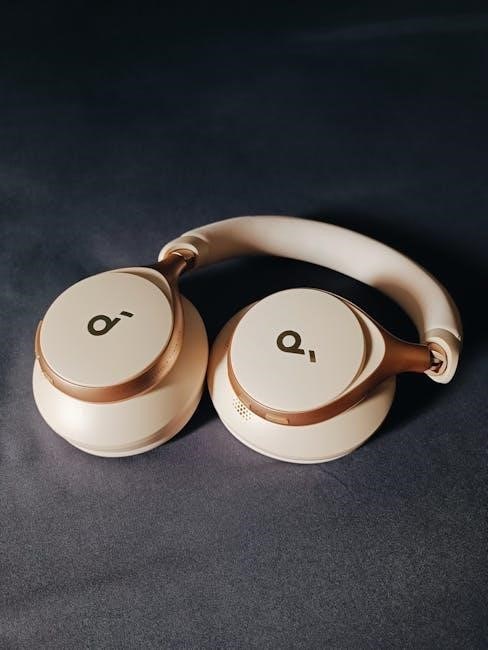
To verify the microphone mute function, physically engage and disengage the mute button on your Plantronics headset. Listen for an audible tone or voice prompt confirming the mute status change – some models provide this feedback. Check your connected device’s input settings; the microphone should visually indicate whether it’s muted or active.
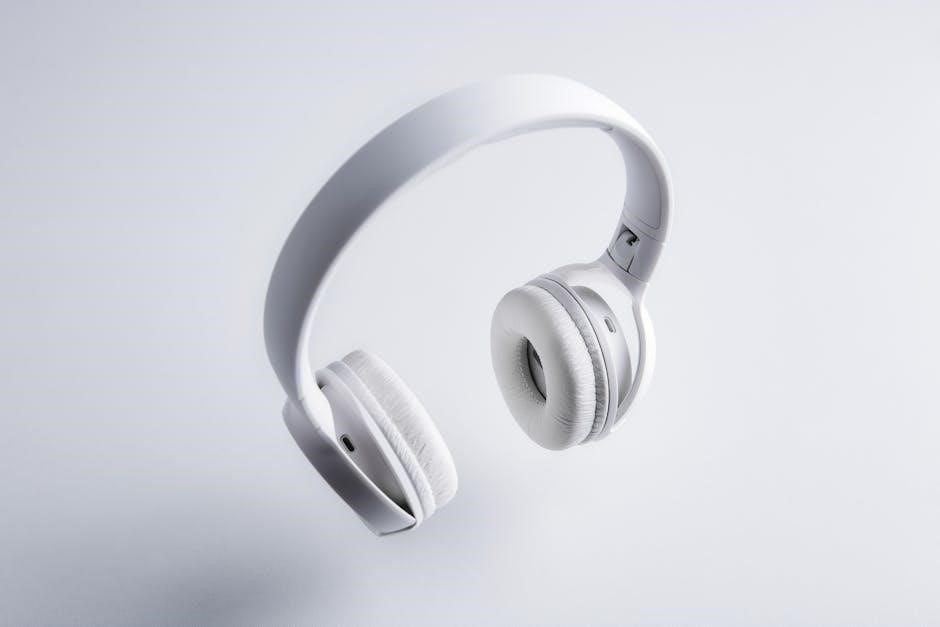
Test the microphone while muted and unmuted to confirm no audio is transmitted during the muted state. If the mute function isn’t working correctly, a software or headset reset may be required.
Software and Driver Updates
Maintaining up-to-date software and drivers is crucial for optimal Plantronics headset performance. Regularly check the Plantronics (now Poly) support website for the latest software versions compatible with your headset model and operating system. Download and install any available updates, following the on-screen instructions carefully.
Outdated software can cause connectivity issues, audio distortions, or microphone malfunctions. Updates often include bug fixes and performance enhancements, ensuring a smoother and more reliable user experience. Restart your device after installation.
Headset Not Connecting
If your Plantronics headset isn’t connecting, several factors could be at play. First, ensure Bluetooth is enabled on both your headset and the connecting device. Try forgetting and re-pairing the headset, as this often resolves connection glitches. Confirm the headset isn’t already connected to another device.
Check for interference from other wireless devices. Restarting both the headset and the device can also establish a fresh connection. Verify device compatibility, as some older systems may have limitations.

Bluetooth Range Considerations
Bluetooth connectivity relies on proximity; Plantronics headsets have a typical range of approximately 33 feet (10 meters). However, this range can be significantly reduced by obstacles like walls, furniture, and even the human body. Interference from other wireless devices – microwaves, Wi-Fi routers – can also shorten the effective range.
Maintain a clear line of sight between the headset and the paired device for optimal performance. Moving closer or eliminating obstructions usually resolves connectivity issues related to range limitations.
Device Compatibility
Plantronics headsets generally support a wide range of devices, including smartphones (both iPhones and Androids) and computers. However, compatibility isn’t always guaranteed. Older Bluetooth versions on devices might limit functionality or cause pairing difficulties. Ensure your device’s Bluetooth is enabled and discoverable.
Some features may require specific Bluetooth profiles supported by both the headset and the connected device. Checking Plantronics’ website for a compatibility list or updating device software can resolve potential issues.
Resetting Your Plantronics Headset
Resetting your Plantronics headset can resolve many issues, from Bluetooth pairing problems to audio glitches. There are typically two reset options: a soft reset and a factory reset. A soft reset often involves a simple power cycle – turning the headset off and on again. A factory reset clears all saved pairings and settings, returning the headset to its original state.
Before performing a factory reset, consider if a soft reset might suffice. Refer to your specific model’s manual for detailed reset instructions, as button combinations vary.
Factory Reset Procedures
A factory reset erases all pairings and preferences on your Plantronics headset, resolving persistent issues. The process varies by model; consult your specific headset’s documentation. Generally, it involves holding down specific button combinations – often the power and volume buttons – for an extended period, typically 10-30 seconds. Watch for visual or auditory cues indicating the reset is in progress, like a flashing light.
After the reset, you’ll need to re-pair the headset with your devices. This is a more drastic step, so try a soft reset first if possible.
Soft Reset Techniques

A soft reset is a quick way to resolve minor glitches without losing paired device information. This typically involves powering the headset off and then back on again. For many models, holding the power button for 5-10 seconds will achieve this. This can resolve temporary software hiccups causing connection or audio problems.
Unlike a factory reset, a soft reset doesn’t erase settings. It’s a first step in troubleshooting before attempting more drastic measures. It’s a simple, non-invasive solution for common issues.
Battery and Charging Issues
Proper charging is crucial for optimal headset performance. If your Plantronics headset isn’t charging, first inspect the charging port for debris or damage. Ensure the charging cable is securely connected to both the headset and a power source. Battery life can diminish over time; optimize it by adjusting volume levels and disabling unused features.
If issues persist, try a different charging cable or adapter. Understanding flashing light patterns can indicate charging status or potential battery problems, offering valuable diagnostic clues.
Charging Port Inspection
A damaged or obstructed charging port is a frequent cause of charging failures. Carefully inspect the port on your Plantronics headset for lint, dust, or any physical damage. Use a non-metallic tool, like a wooden toothpick, to gently remove any debris – avoid metal objects that could cause a short circuit.
Ensure the charging cable fits snugly into the port without excessive force. If the port appears physically broken or loose, professional repair may be necessary to restore charging functionality.
Battery Life Optimization
To maximize your Plantronics headset’s battery life, adjust the volume to a comfortable level, as higher volumes consume more power. Disable features you aren’t actively using, such as active noise cancellation when in quiet environments. Ensure your headset receives full charges before initial use and avoid extreme temperatures, which can degrade battery performance.
Regularly updating the headset’s firmware can also improve power efficiency. Consider storing the headset in a cool, dry place when not in use to prolong battery health.
Troubleshooting Flashing Lights
Flashing lights on your Plantronics headset indicate various statuses; understanding these signals is crucial for troubleshooting. A rapidly flashing blue light often signifies pairing mode, while a slow flashing blue light suggests a connected state. Red flashing lights typically indicate low battery or a connection issue. Consult your specific model’s documentation for a detailed decoding of light patterns.
If a light continues to flash abnormally, a reset or firmware update might be necessary to resolve the underlying problem.
Decoding Light Indicators
Plantronics headsets utilize light indicators to communicate their status, offering valuable troubleshooting clues. Solid blue generally means connected, while flashing blue often signals pairing mode. A red light frequently indicates low battery, prompting a charge. Alternating red and blue can suggest a connection attempt or failure.
Refer to your headset’s specific manual for a complete interpretation of each light pattern, as variations exist between models. Understanding these signals helps diagnose and resolve common issues efficiently.
Identifying Error Signals
Plantronics headsets communicate errors through specific light patterns and, sometimes, audible cues. Rapidly flashing red lights often indicate a critical error, potentially requiring a reset. A consistent, slow flashing red might signal a connection issue or low battery. Pay close attention to the sequence and color.
Consult your headset’s documentation to decipher these signals accurately. Recognizing these error indicators allows for targeted troubleshooting, saving time and frustration when resolving connectivity or functionality problems.
Plantronics Headset and Smartphone Compatibility
Plantronics headsets generally exhibit broad compatibility with both iPhones and Android devices, leveraging the Bluetooth standard for seamless connectivity. However, occasional issues can arise due to software variations or specific device configurations.
Ensure your smartphone’s Bluetooth is enabled and discoverable. For optimal performance, keep your phone’s operating system updated. Larger smartphones, like the Samsung Galaxy Note or iPhone 6 Plus, benefit greatly from hands-free headset use, enhancing convenience and call quality.
Connecting to iPhones
To connect your Plantronics headset to an iPhone, first, ensure Bluetooth is activated in your iPhone’s Settings. Place your headset in pairing mode – consult your headset’s specific instructions for this process. Within the iPhone’s Bluetooth settings, your headset should appear in the “Other Devices” list.
Select your headset to initiate pairing. Apple has consistently expanded audio connectivity options, including robust Bluetooth support. If pairing fails, try resetting your headset or “forgetting” it in the iPhone’s Bluetooth settings and re-pairing.
Connecting to Android Devices
Pairing a Plantronics headset with an Android device is generally straightforward. Begin by activating Bluetooth on your Android smartphone or tablet through the Settings menu. Put your Plantronics headset into pairing mode – the method varies by model, so refer to its documentation.
Your Android device will scan for available Bluetooth devices; locate your headset in the list and select it. Confirm any pairing requests that appear on either device. If connection issues arise, try restarting both devices or clearing the paired device list and re-pairing.
Advanced Troubleshooting Steps
When standard solutions fail, delve into advanced troubleshooting. First, check for available firmware updates for your Plantronics headset using the Plantronics Hub software (if applicable) or the manufacturer’s website. Outdated firmware can cause compatibility issues.
Next, attempt a complete reset of your headset – both a soft reset and a factory reset, following the specific instructions for your model. If problems persist, investigate potential interference from other wireless devices. Finally, don’t hesitate to contact Plantronics support for expert assistance.
Checking for Firmware Updates
Regular firmware updates are crucial for optimal performance. Utilize the Plantronics Hub software on your computer to easily check for and install the latest firmware for your headset. Alternatively, visit the official Plantronics (now Poly) support website and navigate to your specific headset model’s download section.
Firmware updates often address bugs, improve Bluetooth connectivity, and enhance audio quality. Ensure your computer is connected to the internet during the update process, and avoid interrupting it to prevent potential issues.
Contacting Plantronics Support
If troubleshooting steps fail, direct assistance is available. Visit the official Plantronics (now Poly) support website for a comprehensive knowledge base, FAQs, and troubleshooting guides. You can also initiate a live chat with a support representative for immediate assistance.
Alternatively, locate the customer support phone number on their website to speak directly with a technician. When contacting support, have your headset model number and a detailed description of the issue ready for faster resolution.